
A ROHD Design Cockpit: The ROHD Tools VSCode Extension
Hardware design is most productive when structure, behavior, and generator source are connected instead of spread across unrelated tools. Microsoft Visual Studio Code® (VS Code) is already an excellent environment for Dart™: the Dart extension brings diagnostics, navigation, completion, and debugging into the editor. Dart also has a rich package ecosystem on pub.dev.
ROHD is built on Dart, so ROHD designs benefit immediately from that language support while adding hardware-specific simulation, elaboration, and visualization tools. The ROHD ecosystem also publishes packages on pub.dev, including rohd (hardware design and simulation), rohd_vf (verification support), rohd_hcl (reusable hardware components), rohd_cosim (cosimulation), and rohd_bridge (connectivity management).
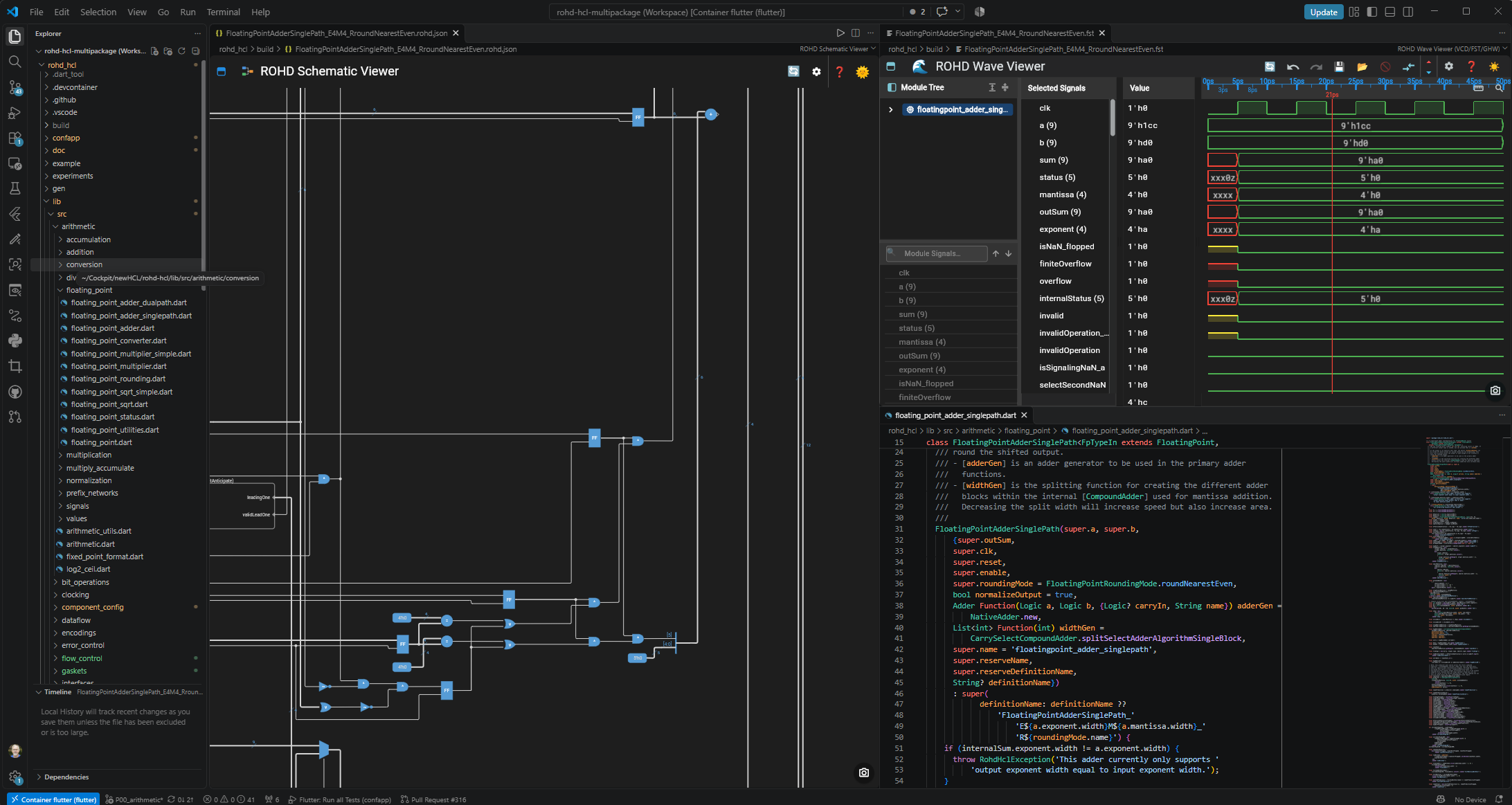
The ROHD Tools extension adds ROHD-specific language support, including context-based completion and ROHD syntax support, as well as tools such as the ROHD Schematic Viewer and ROHD Wave Viewer. Together, they turn VS Code into a ROHD Design Cockpit: a coordinated workspace for developing a design, inspecting simulation results, exploring generated RTL, and returning to the ROHD source that created a signal. The viewers can send signals to each other and, when source mappings are available, cross-probe to the corresponding ROHD or generated source lines in VS Code.
In this cockpit, the ROHD Schematic Viewer, ROHD Wave Viewer, and ROHD source are open side by side in VS Code. Together they let you inspect the design’s generated structure, simulation waveforms, ROHD generator source, and generated RTL without leaving the editor.
How to Get It
Install the
ROHD Tools
from the Visual Studio Marketplace. Published as intel-corporation.rohd-tools, it
includes an extension pack that installs the
ROHD Schematic Viewer
and ROHD Wave Viewer,
so the communcating extensions are installed and ready together.
The extension also provides basic ROHD editor support, including syntax-expansion snippets. It is the foundation for deeper ROHD-aware editor support, including the Dart analyzer integration described below.
Build, Simulate, and Inspect
ROHD’s built-in simulator fits naturally into the Dart development experience. From VS Code, set breakpoints in a ROHD test, step through the simulation, and inspect or print signal values while the test runs. The same test can record a waveform for closer inspection after the fact.
For a floating-point adder, constructing the module and completing its build()
step is analogous to elaborating a conventional HDL design: ROHD creates the
module hierarchy and connections that represent the hardware. Yet ROHD
elaboration and simulation engines are optimized for rapid design-turnaround, so
the experience is far far faster than traditional RTL simulation environments. A
test then drives the elaborated design, advances simulation time, checks
expected values, and can emit the waveform trace used by the ROHD Wave Viewer.
From that same elaborated design, ROHD can generate a netlist for the ROHD
Schematic Viewer. One test and one design description can therefore lead to the
simulation values, waveform, and structural view needed to investigate an issue.
Generate the Views and Source Artifacts
In the floating-point adder test, activate SourceTracer before constructing
the adder and call build() to elaborate it. The services then prepare the
artifacts used by the viewers:
- Netlist:
NetlistServiceprovides a Yosys JSON netlist for the ROHD Schematic Viewer. CallwriteOutputs()to write<definitionName>.rohd.jsonin the output directory. The traced netlist connects its signals and modules to their ROHD source locations. - Generated source:
SystemVerilogServicewrites.svfiles.SystemCServicecan also write.scfiles when needed. In the example below, SystemVerilog source-trace comments are disabled. - File-Line-Column (FLC) symbol dictionary:
TraceServiceuses the generated-source services to write a<definitionName>.flc.jsonsidecar mapping ROHD construction sites to the generated source. It enables cross-probing to generated source; the traced netlist supports navigation back to ROHD without that sidecar. - Waveform:
WaveformServicecaptures a.fstfile for the ROHD Wave Viewer and enables DevTools streaming during simulation.
Simplest case: traced netlist and ROHD source
For schematic-to-ROHD-source navigation, enable tracing before constructing the
adder, build it, and create a NetlistService. This example uses clk, fp1,
fp2, and buildDir from the surrounding test:
SourceTracer.activate();
final adder = FloatingPointAdderSinglePath(clk: clk, fp1, fp2);
await adder.build();
NetlistService(adder, outputDirectory: buildDir)..writeOutputs();
The resulting Yosys JSON netlist contains rohd.src_trace attributes that
connect the schematic’s signals and modules to their ROHD construction sites.
Open the .rohd.json netlist in the ROHD Schematic Viewer and choose Go to
ROHD Source for source cross-probing; no generated source or FLC sidecar is
required.
Add an FLC sidecar for generated-language navigation
To navigate to generated SystemVerilog as well, write the generated source and
pass its service to TraceService. The following extends the traced and built
adder above:
final sv = SystemVerilogService(
  adder,
  outputDirectory: buildDir,
  embedSourceTraceComments: false,
)..writeOutputs();
TraceService(adder, svService: sv).write(buildDir);
The FLC dictionary associates generated source locations with ROHD construction
sites without requiring embedded SystemVerilog trace comments. If SystemC output
is also needed, create a SystemCService and pass it to TraceService alongside
the SystemVerilog service. The ROHD Schematic Viewer or ROHD Wave Viewer can use
the dictionary to navigate to the corresponding generated source.
Complete artifact setup
Putting the setup together, this excerpt uses clk, fp1, fp2, and buildDir
from the surrounding test and also configures FST capture and live streaming:
SourceTracer.activate();

final adder = FloatingPointAdderSinglePath(clk: clk, fp1, fp2);
await adder.build();

NetlistService(adder, outputDirectory: buildDir)..writeOutputs();

final sv = SystemVerilogService(
  adder,
  outputDirectory: buildDir,
  embedSourceTraceComments: false,
)..writeOutputs();

TraceService(adder, svService: sv).write(buildDir);

WaveformService(
  adder,
  format: WaveOutputFormat.fst,
  outputDirectory: buildDir,
  writeToFile: true,
  enableDevToolsStreaming: true,
);
See the Design’s Structure
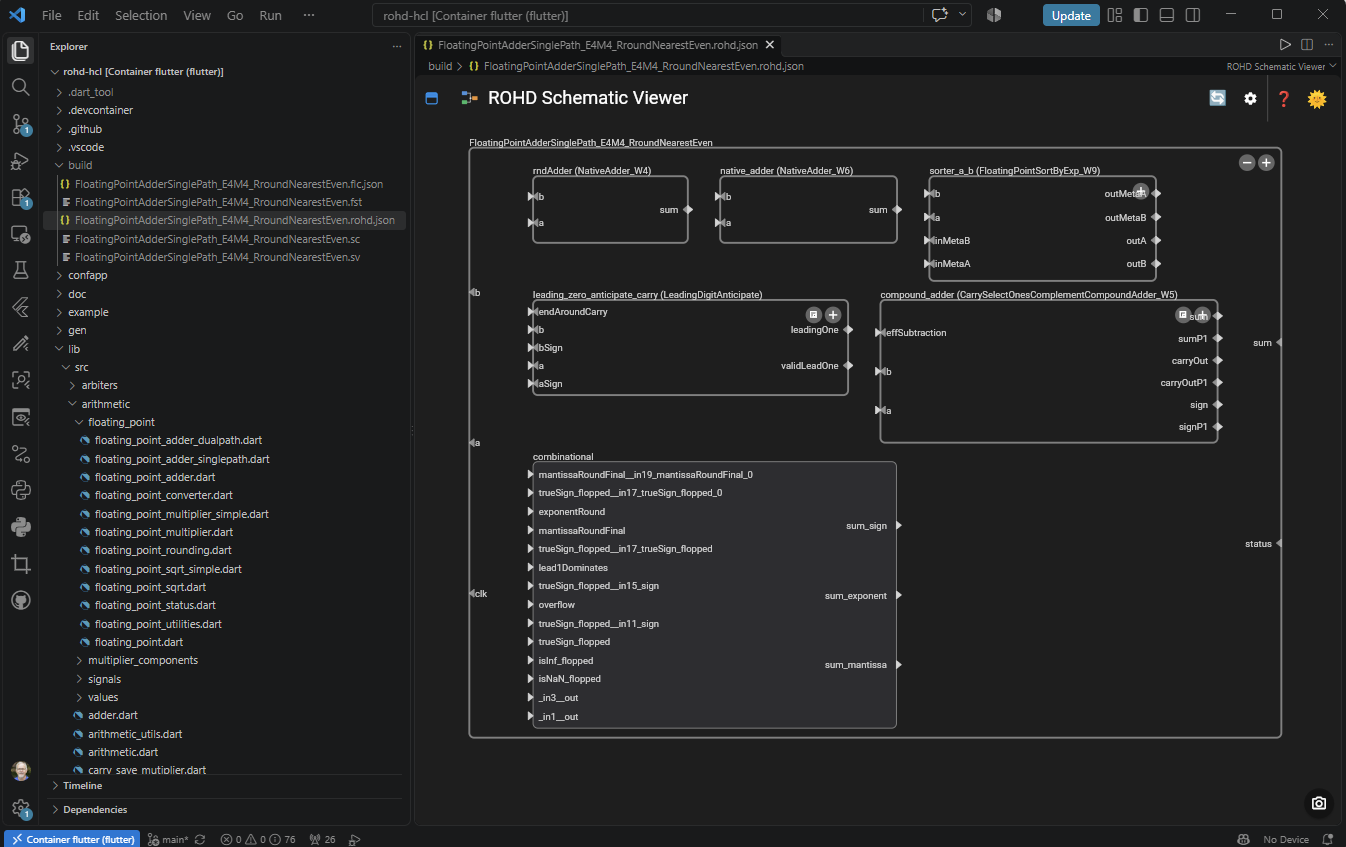
The ROHD Schematic Viewer renders a netlist generated from a ROHD design as an interactive schematic. Pan, zoom, and expand hierarchy only where it is needed; then select ports or wires to follow the connections that matter. Search by wire name or hierarchy path, and use the viewer’s ROHD type awareness to inspect structured signals and arrays meaningfully. The image below shows the ROHD Schematic Viewer embedded in VS Code beside the ROHD project and generated netlist. The ROHD Schematic Viewer announcement also covers its standalone web application.
ROHD Source Cross-probing
The extension opens a Yosys JSON netlist alongside the design’s source. ROHD’s
NetlistService provides the netlist, and source tracing preserves FLC locations
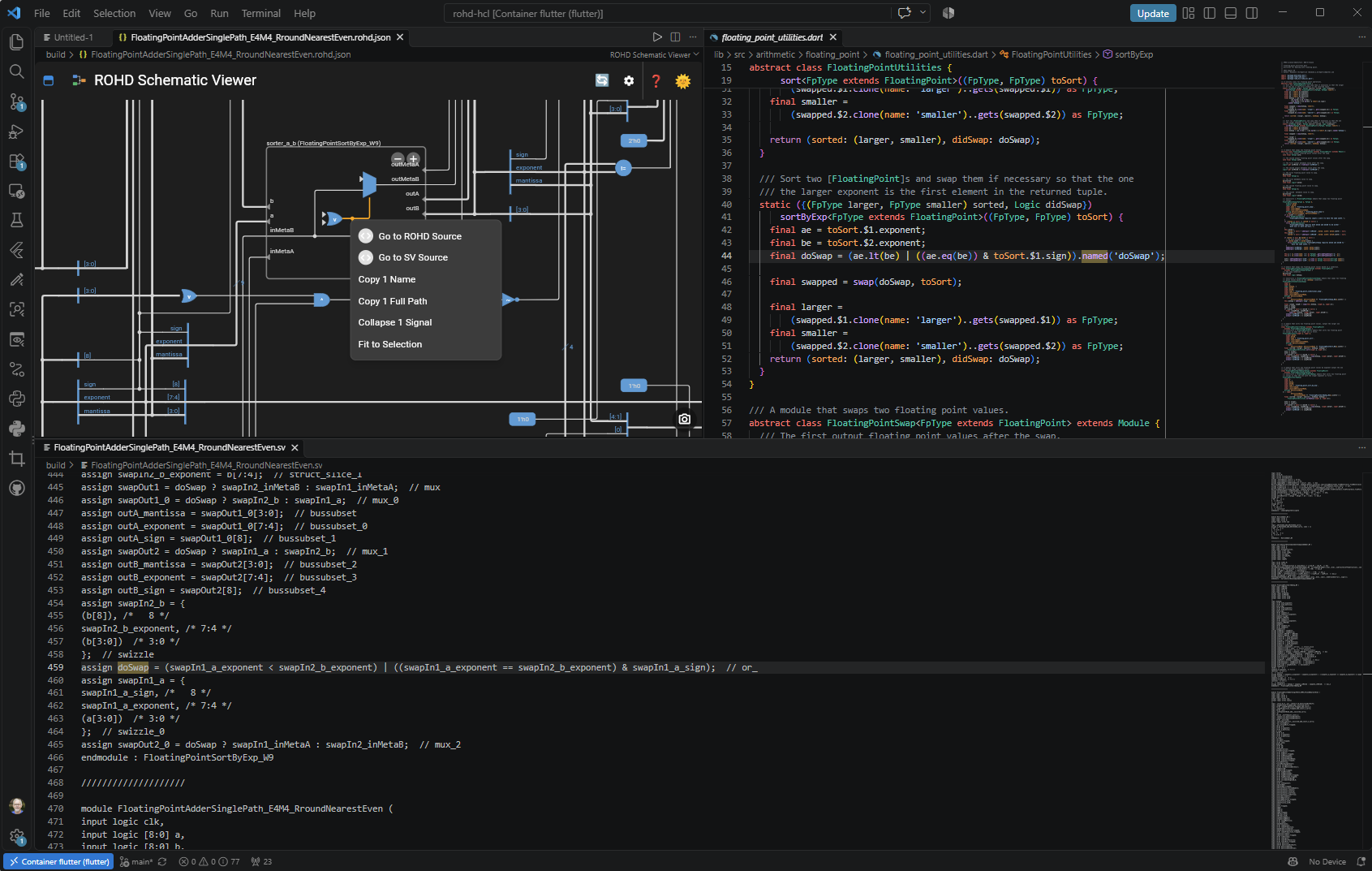
for generated signals. With source tracing enabled, choose Go to ROHD Source on
a schematic signal to cross-probe directly to the ROHD code that generated it.
In the image below, cross-probing highlights source line 44, where the selected
signal was named by the ROHD code. When more than one source location applies,
VS Code presents the relevant frame to choose from. If SystemVerilog or SystemC
output and its FLC mappings are available, the ROHD Schematic Viewer can also navigate
to the corresponding generated source.
See What the Design Did
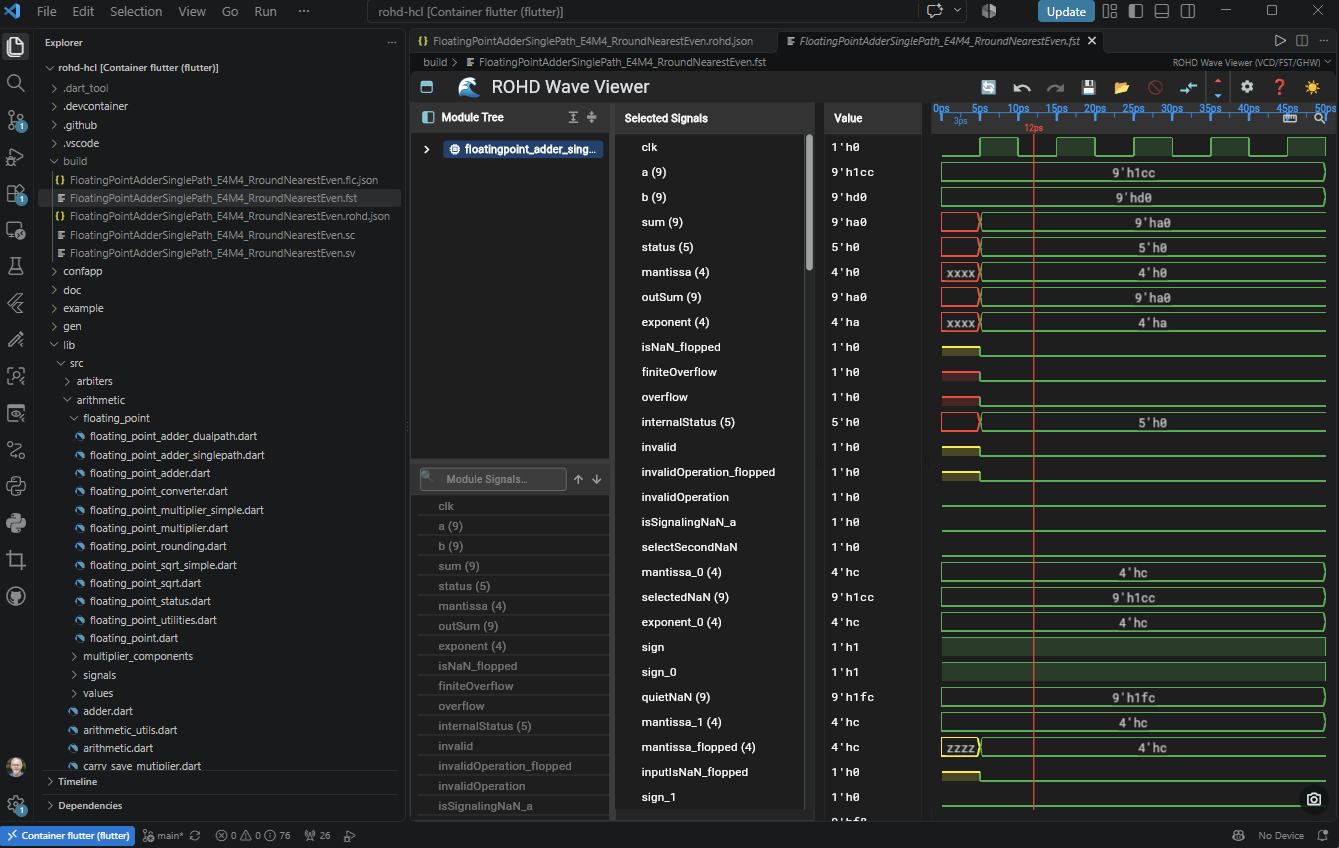
The ROHD Wave Viewer brings the same signal hierarchy into a waveform workspace. Open VCD, FST, or GHW traces, filter the hierarchy, select the signals to monitor, and use markers, zoom, value formats, and edge navigation to investigate the cycles where behavior changes. Signal lists and full viewer sessions can be saved and restored, making it easy to return to a useful debug setup. The image below shows the ROHD Wave Viewer embedded in VS Code alongside the ROHD project and the waveform file it opened. The ROHD Wave Viewer post describes the separate browser-based viewer.
Cross-Probe Between Views
The two extensions turn the editor into more than two independent viewers. Select
a signal in the schematic and send it to the ROHD Wave Viewer to find the matching
hierarchy path and add its recorded waveform. Select a waveform signal and send
it back to locate the corresponding connection in the rendered RTL. The linked
views keep structural and behavioral investigation in the same workflow. In the image
below you can see that we are sending the carryOut_flipped signa from the ROHD
Wave Viewer to be zoomed and highlighted in the ROHD Schematic Viewer.
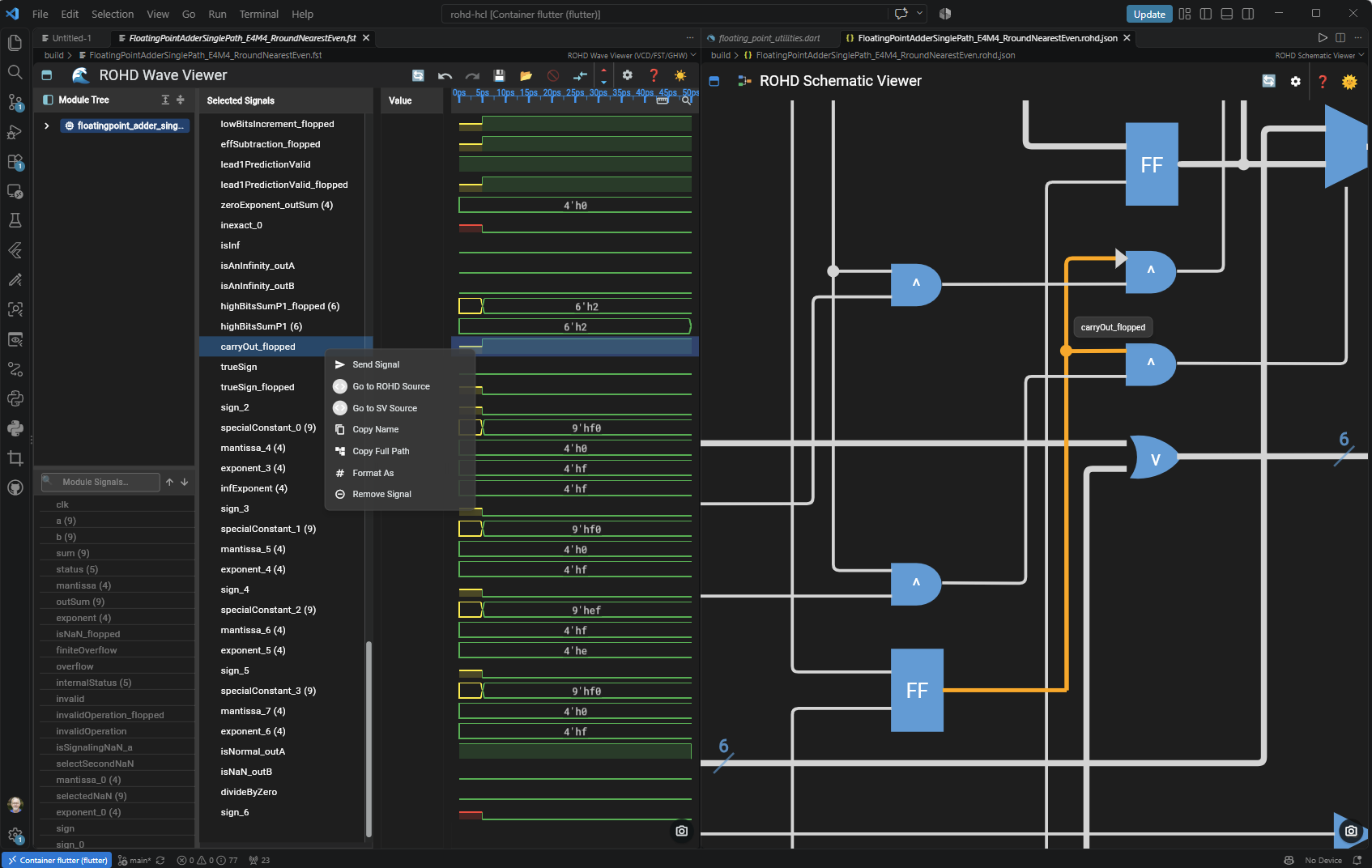
Nominally, not every internal net is recorded in a waveform. In that case, the ROHD Schematic Viewer can send a connected module port instead, so the ROHD Wave Viewer can still show a useful driving or receiving signal. The result is a quick route from a waveform transition, to its RTL connection, to the ROHD source that describes the design. When matching generated SystemVerilog or SystemC artifacts are available, either viewer can also cross-probe to that generated source.
Build a Better ROHD Workflow
The extensions are designed to complement the rest of the ROHD tooling rather than replace the normal edit, simulate, and test loop. Use the schematic to understand the generated design, the ROHD Wave Viewer to understand its behavior over time, and source cross-probing to make a precise code change without losing the hardware context. The Dart debugger and ROHD simulator provide the first interactive pass; the generated waveform and netlist provide the linked behavioral and structural views when a question needs more context.
What’s Ahead
We are extending ROHD Tools with a Dart analyzer plugin that will provide ROHD-specific static checks directly in VS Code. The Dart analyzer detects errors, warnings, and lint issues before code runs; for some diagnostics, Dart tooling also offers quick fixes that can automatically correct the code. We aim to bring similar guidance to ROHD symbols and design patterns, including diagnostics and suggested fixes for hardware-design issues before simulation.
Get Involved
Try the extensions from the Marketplace and let us know what would make your ROHD Design Cockpit more effective. Join the ROHD Discord server to share feedback, or file issues with the ROHD Schematic Viewer or ROHD Wave Viewer projects.