
Announcing the ROHD Schematic Viewer
Hardware designers spend a lot of time answering one deceptively simple question: “what is actually connected to what?” Today we’re announcing the ROHD Schematic Viewer, a Flutter-based rendering GUI for a netlist representing a design generated by ROHD. ROHD provides a netlist synthesizer to match. The web release presents that RTL as an interactive, explorable schematic right in your browser – no installation required – while integrated hosts such as the VS Code extension can add source navigation and cross-probing.
Watch the viewer progressively expand a design and reveal the connections that matter.
Rendering Generated RTL
Despite its name, the viewer is not a schematic capture tool. It is a rendering GUI for the RTL generated by a ROHD module generator: a visual way to inspect the modules, cells, ports, and wires that make up the generated design. The ROHD Schematic Viewer takes a different approach to traditional heavyweight, licensed, desktop-only tooling; built on Flutter, the same interactive viewer can run as:
- A hosted web application, so anyone can drop in a Yosys JSON netlist and traverse the schematic immediately, with no local install and no upload – the file is parsed and rendered entirely client-side, in the browser.
- A native Linux desktop application for a standalone experience.
- A VS Code extension, so schematics open directly from the editor you’re already using to write and debug ROHD designs. It supports ROHD source navigation when the netlist includes File/Line/Column source locations, as well as cross-probing selected signals to other registered viewers.
- An embedded Flutter widget in another ROHD application, where the host can connect the viewer to its own source-navigation and cross-probing services.
This lines up with the same delivery philosophy behind the ROHD Wave Viewer and the ROHD DevTools extension: build one Flutter widget, and let it show up everywhere a hardware designer needs it.
What You Can Do With It
The viewer is built around making it fast to go from “here’s a big netlist” to “here’s the exact wire I care about”:
- Interactive pan, zoom, and fit: scroll to pan,
Ctrl/Cmd+scroll to zoom, or pressFto fit the whole schematic in view. - Incremental hierarchy exploration: click a module instance to select it, and expand or collapse its contents with
+/-icons instead of being forced into a single flattened view. - Port-driven expansion: click a port to incrementally reveal (or collapse) only the logic connected to that port, so you can grow the visible schematic one connection at a time rather than rendering an entire design up front.
- Wire highlighting and tooltips: click any wire to highlight every connected segment in orange, and hover to see its signal name and hierarchical path.
- Wire search (
Ctrl+F/Cmd+F): find wires by name, including hierarchical paths likeFloatAdder/mantissa_sumand partial matches, with live results you can step through with arrow keys. - ROHD type awareness: the viewer understands ROHD’s richer types, so multidimensional
LogicArrayvalues andLogicStructurefields are represented meaningfully instead of collapsing into opaque buses.
Also a VS Code Extension
Watch a selected RTL signal cross-probe from the viewer to the ROHD source that generated it.
The viewer is also available as a VS Code extension. ROHD’s NetlistService generates the netlist, and its NetlistOptions(trace: true) option embeds File/Line/Column source locations when source tracing was activated before the design was built. When the extension opens that enhanced netlist, a selected schematic signal can cross-probe directly to the Dart source that produced it. Choose Go to ROHD Source and VS Code opens the corresponding location beside the rendered RTL; if a signal has multiple source locations, the extension offers a picker for the relevant frame. It can also cross-probe selected signals with other registered ROHD viewers, such as a linked waveform display, keeping structural, behavioral, and source views in sync.
The standalone hosted browser application is intentionally limited to schematic traversal because it has no host service for opening source locations or exchanging signal selections. That is a limitation of the standalone site, not of the Flutter web widget: an application embedding the viewer can provide those services. Use the VS Code extension for the supported editor-integrated workflow.
Also a Flutter Widget
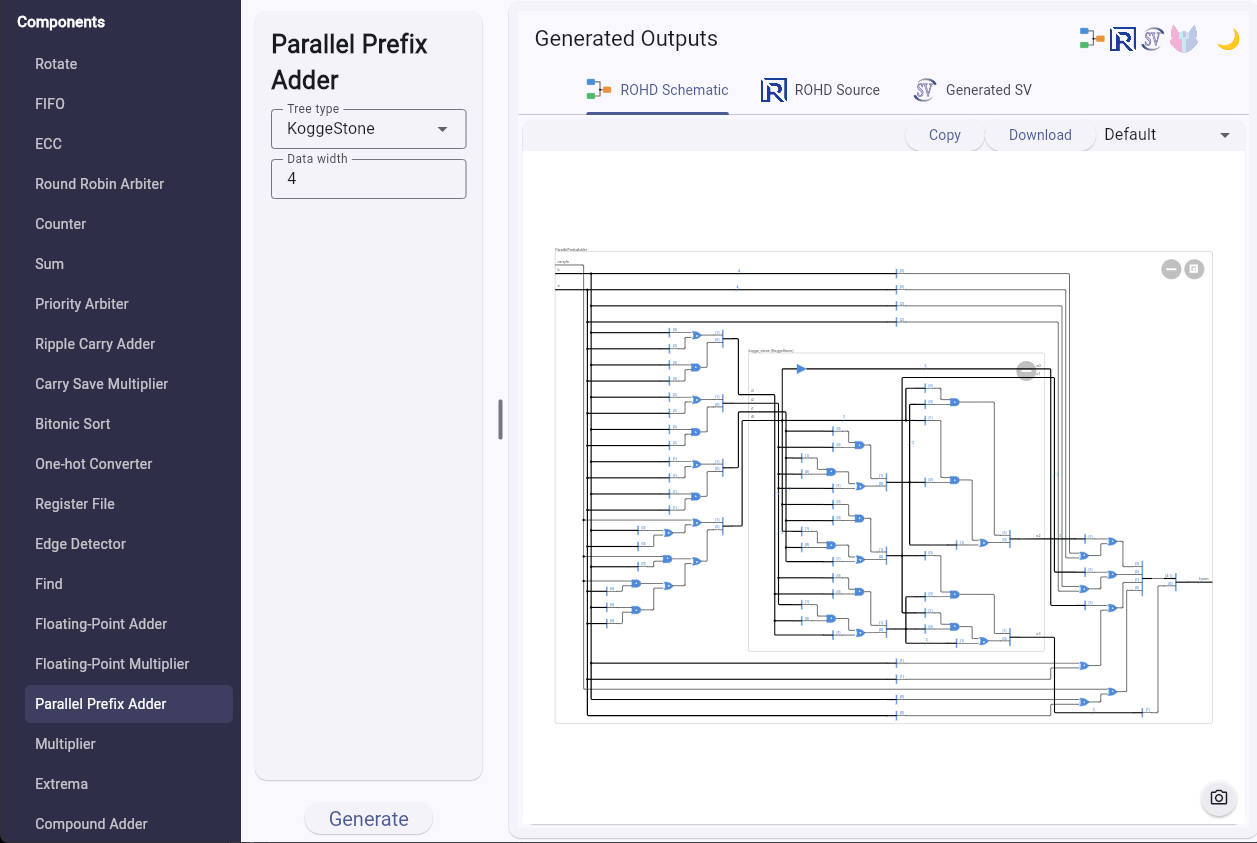
The schematic viewer is also integrated into our ROHD-HCL configurator, which provides plenty of examples of generated component schematics to explore alongside their source code and synthesized SystemVerilog.
One Signal, Three Perspectives
The useful question during debug is rarely just “what is this signal called?” It is “where does this generated RTL connection go, what did it do over time, and which ROHD code created it?” In VS Code, with both viewer extensions open, send a selected schematic net to the Wave Viewer and it finds the matching hierarchy path and adds its recorded waveform. Send a waveform signal the other way to locate the associated net in the rendered RTL. When an internal net was not recorded, the schematic viewer can send a connected module port instead, providing a useful driving waveform rather than ending the investigation.
Yosys JSON as an RTL Exchange Format
The viewer reads the widely supported Yosys JSON netlist format, including output from the open-source Yosys synthesis suite. In this workflow, Yosys JSON is the medium used to communicate RTL as a netlist – it is not a limitation on what the viewer represents. For ROHD designs, NetlistService generates this JSON and can extend it with ecosystem-specific attributes, including File/Line/Column source locations used by the VS Code extension. Those attributes preserve the connection from rendered RTL signals back to their ROHD source while retaining the familiar JSON netlist structure.
Try It Today
Because it’s hosted, there’s nothing to install to get started – just open the ROHD Schematic Viewer and load a Yosys JSON file to traverse its schematic. For editor-integrated source navigation and cross-probing, use the VS Code extension with an appropriately enhanced netlist; applications embedding the viewer can also supply their own integration services. If you’d rather work from VS Code or want a native Linux build, the project’s README covers the developer quick start, VS Code extension packaging, and keyboard shortcuts in more detail.
This is an early release, and the schematic viewer will keep growing alongside the rest of the ROHD debug tooling. If you run into rough edges or have feature requests, we’d love to hear from you on the ROHD Discord server or through issues on the repository.