Expert Advisor
The Expert Advisor is designed for lecturers who deliver courses using a pre-configured installation package provided by a Curriculum Builder.
This guide covers the full workflow: Landing Page → Add Courses → Add RAG Document Source → Course Content Generator → Summary Generator → Assessment Generator → FAQ Generator → AI Chat.
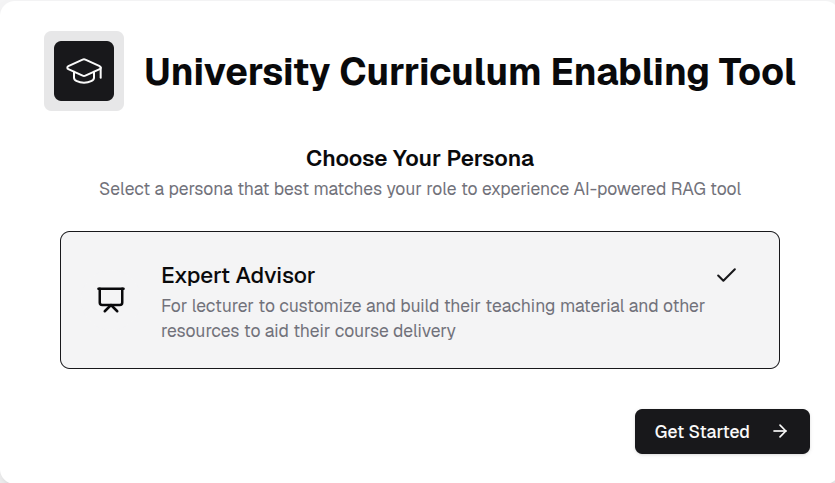
Select Expert Advisor Persona
- On the application home page, click Expert Advisor Persona.
-
Click Get Started.
Landing Page
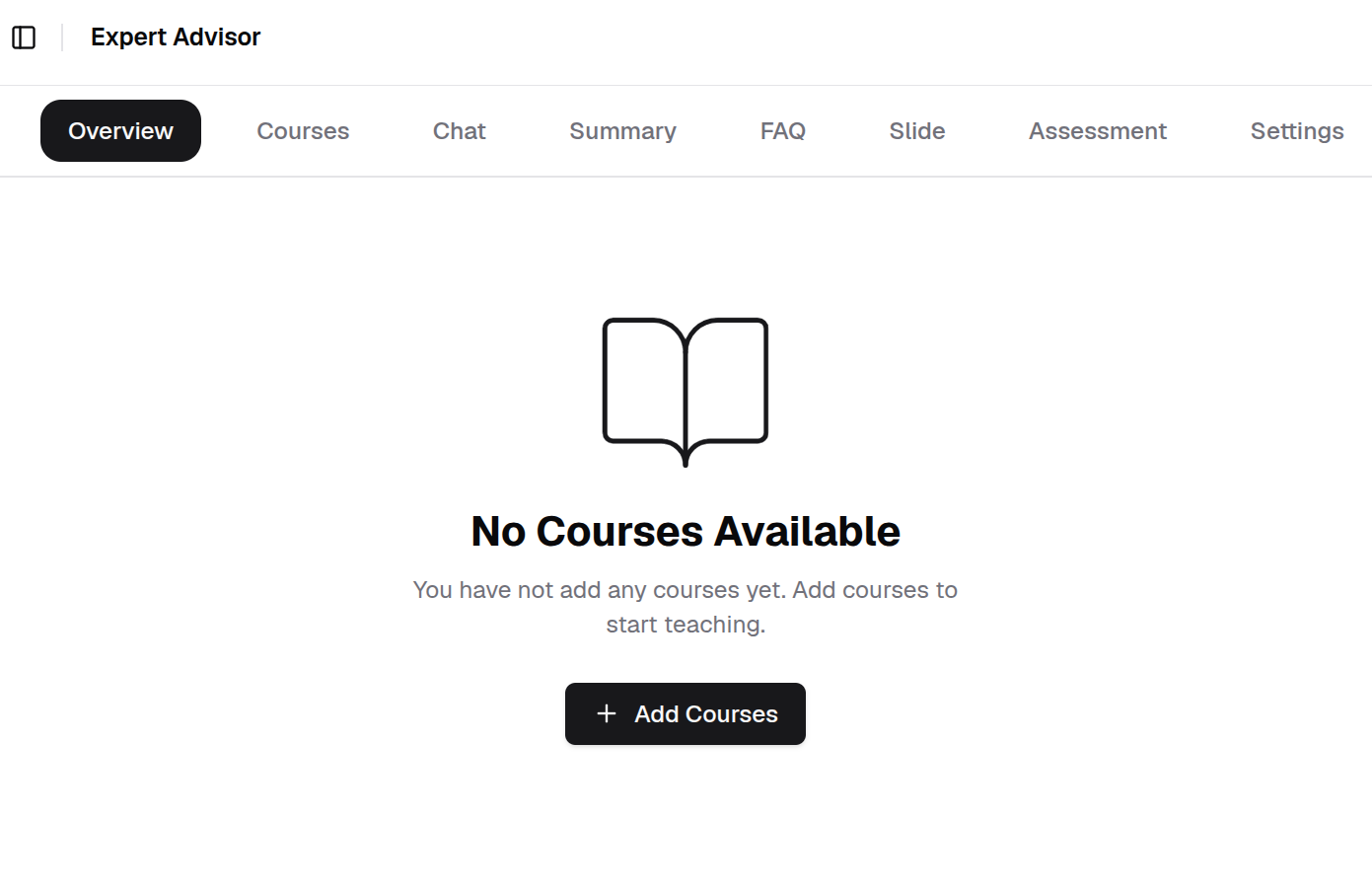
After selecting Get Started as Expert Advisor, the landing page is displayed.
Add Courses
-
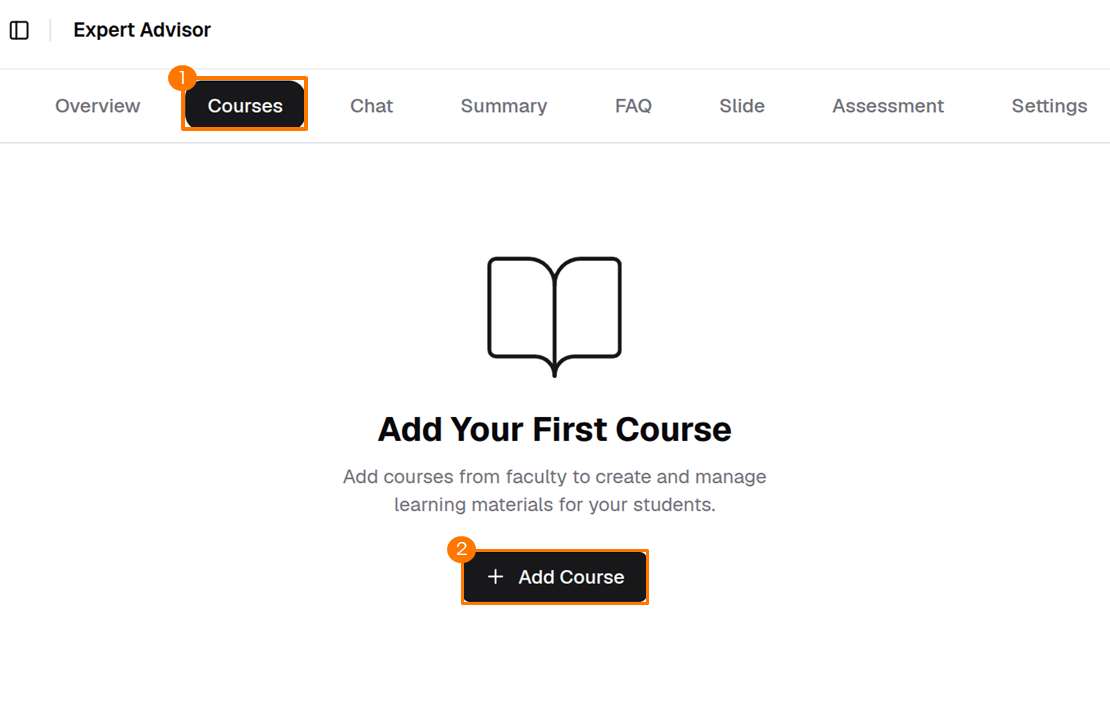
Click Courses then click Add Courses to upload courses from the installation package.
-
Upload the programme configuration file.
The programme configuration JSON file is included in the extracted installation package.
Info
Example programme configuration file name format:
programme-<programme_code>-<programme_version>-UCET-<application_version>.json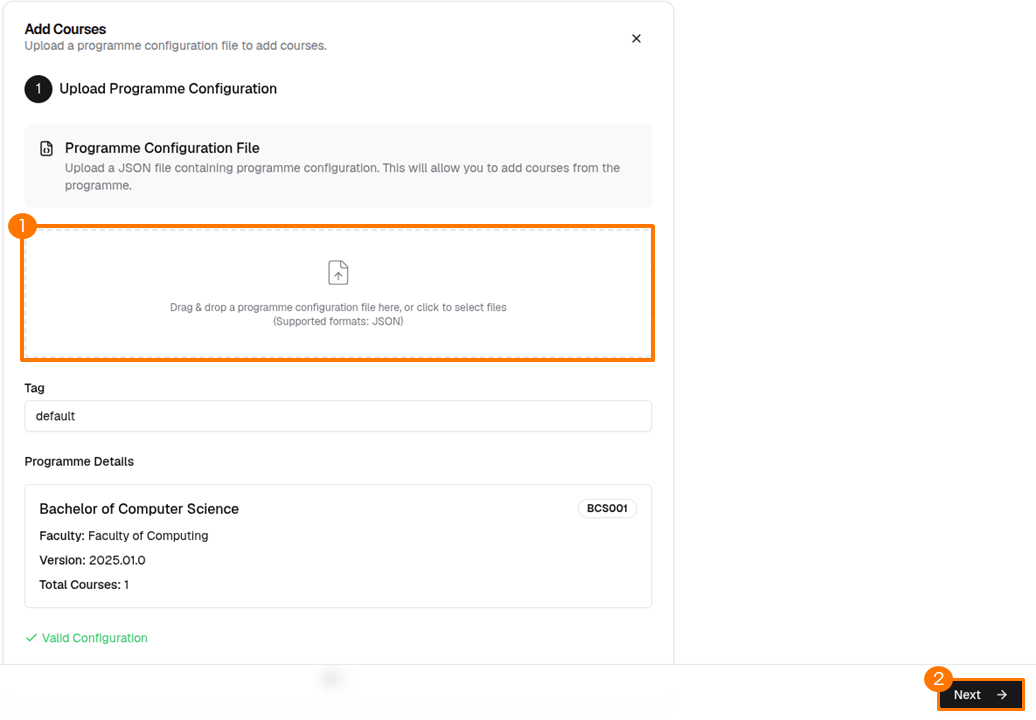
After uploading the programme configuration file, click Next.
-
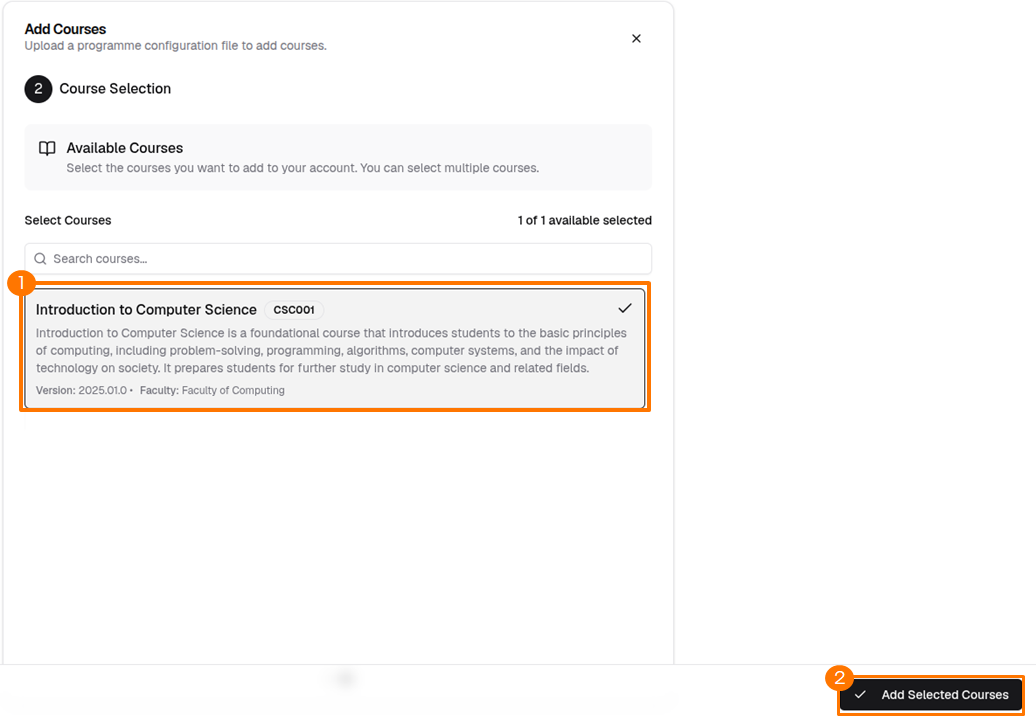
Select the courses to add.
Choose the target courses from the available courses list, then click Add Selected Courses.
-
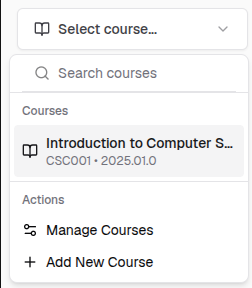
Select the active course.
Select a course from the course selector in the top-left corner.
Add RAG Document Source
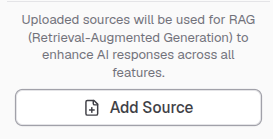
Uploaded sources are used for Retrieval-Augmented Generation (RAG) to enhance AI responses across all features.
-
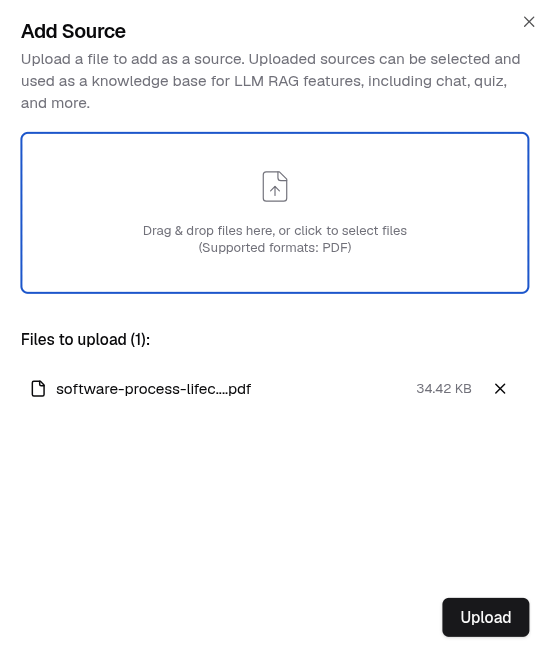
Click Add Source in the bottom-left corner.
-
Upload your document and click Upload.
Info
The currently supported format is PDF only.
-
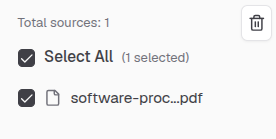
Check the checkbox next to a source in the sources list.
Info
Selecting a document as a knowledge source is optional.
Course Content Generator
Generate teaching materials with RAG-powered content based on your selected source documents.
Info
The quality of generated content depends on the relevance and quality of your source materials.
-
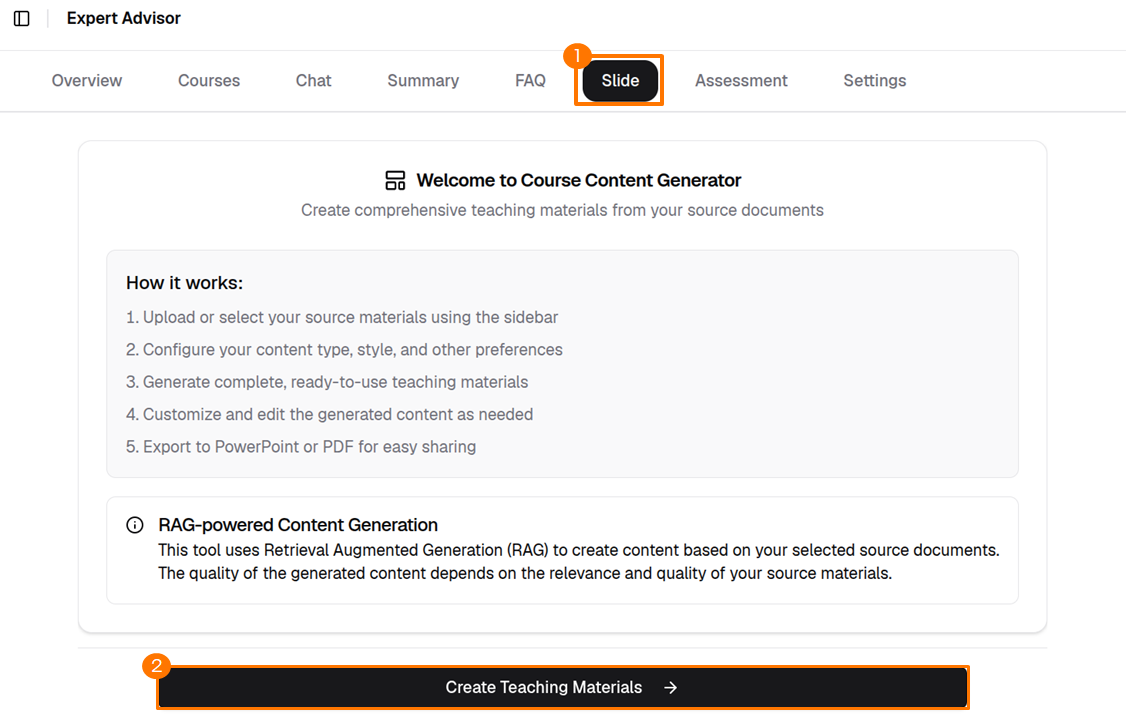
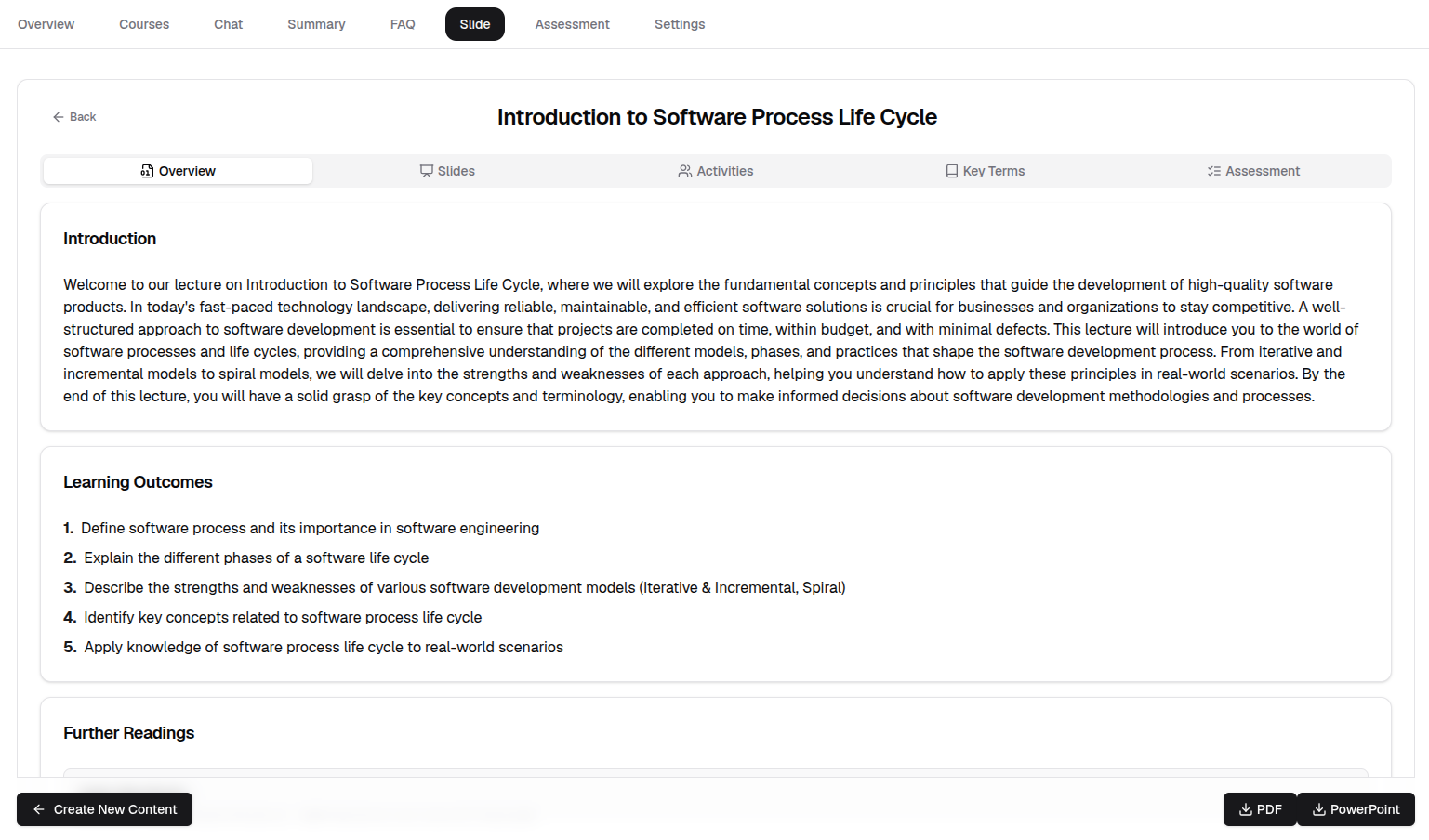
Click Slide, then click Create Teaching Materials.
-
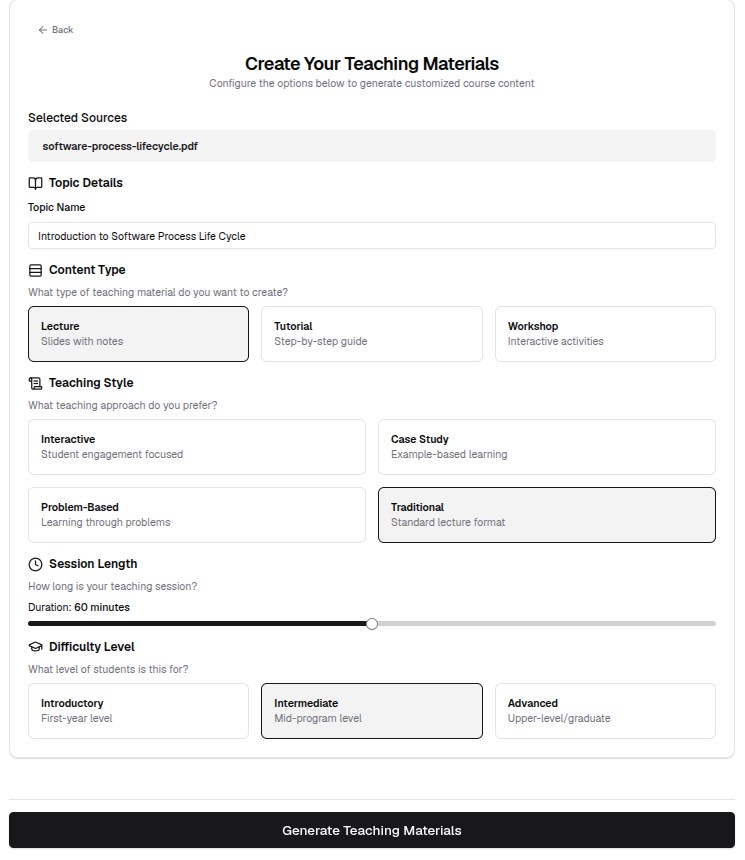
Enter the topic name, configure the available options, then click Generate Teaching Materials.
-
Once generated, use the tabs to navigate between sections. To download, click the PDF or PowerPoint* icon at the bottom of the page.
Summary Generator
Generate a summary from a single uploaded document.
Info
Only one document can be selected at a time for summary generation.
-
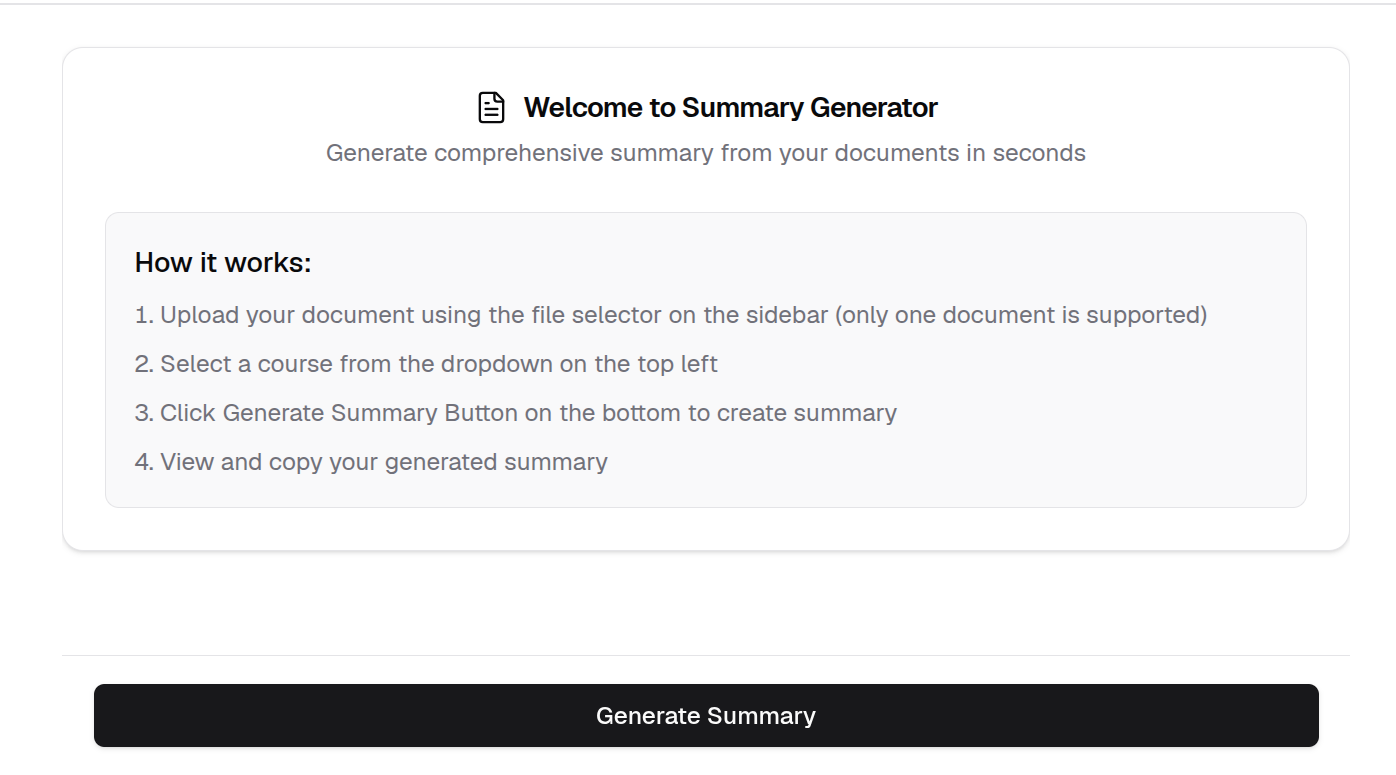
Select a document using the file selector in the sidebar.
-
Select the active course from the course selector in the top-left corner.
-
Click Generate Summary at the bottom of the page.
-
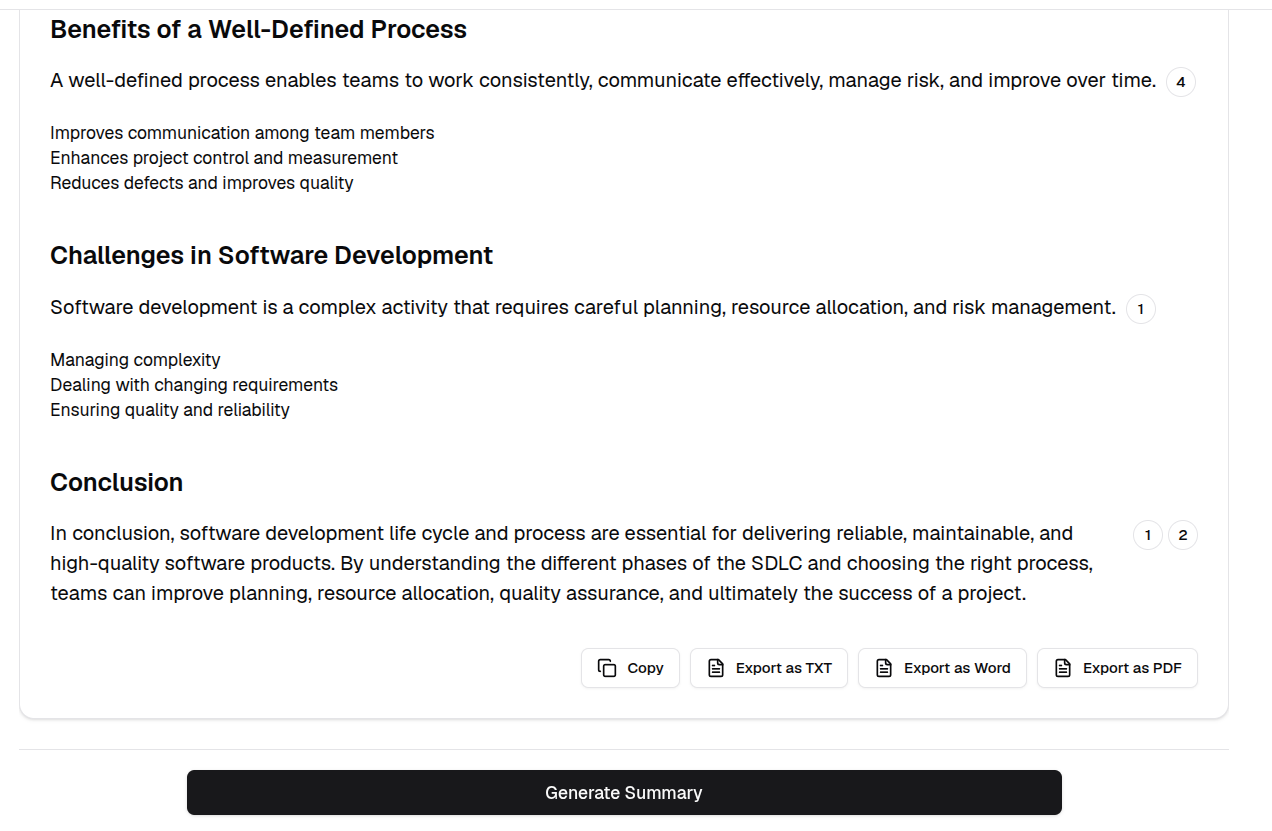
Once the summary is generated, scroll to the bottom to find the export options. Select your preferred format to download.
Assessment Generator
-
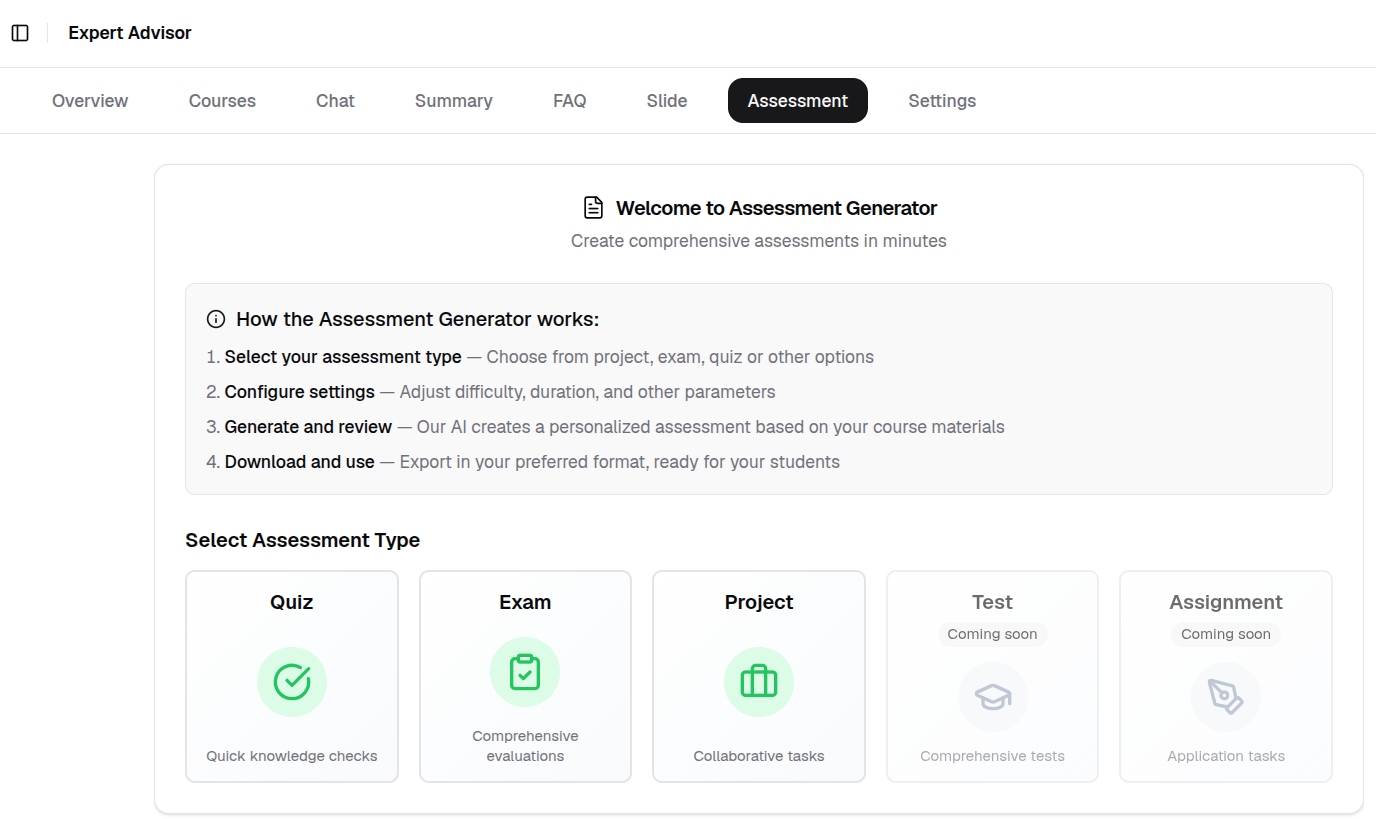
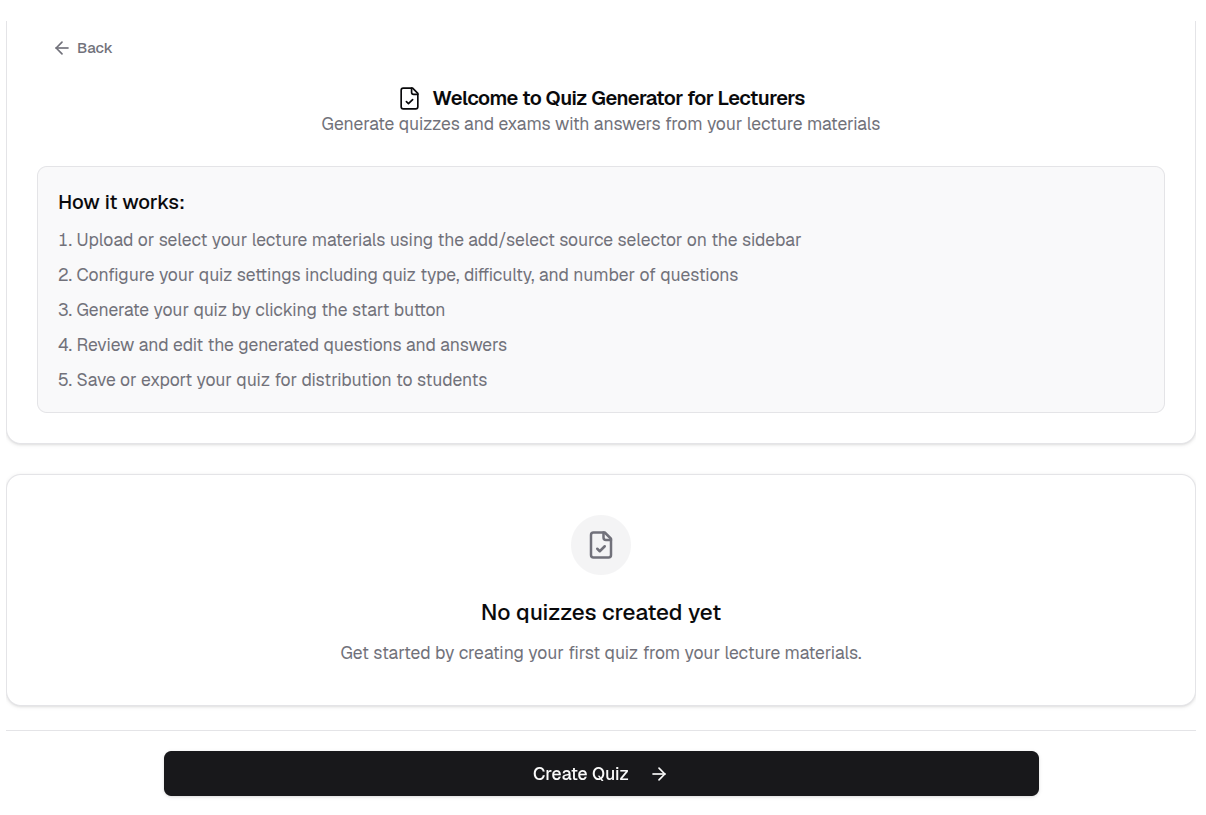
Click the Assessment tab, then select the assessment type. The steps below use Quiz as an example.
-
Click Create Quiz.
-
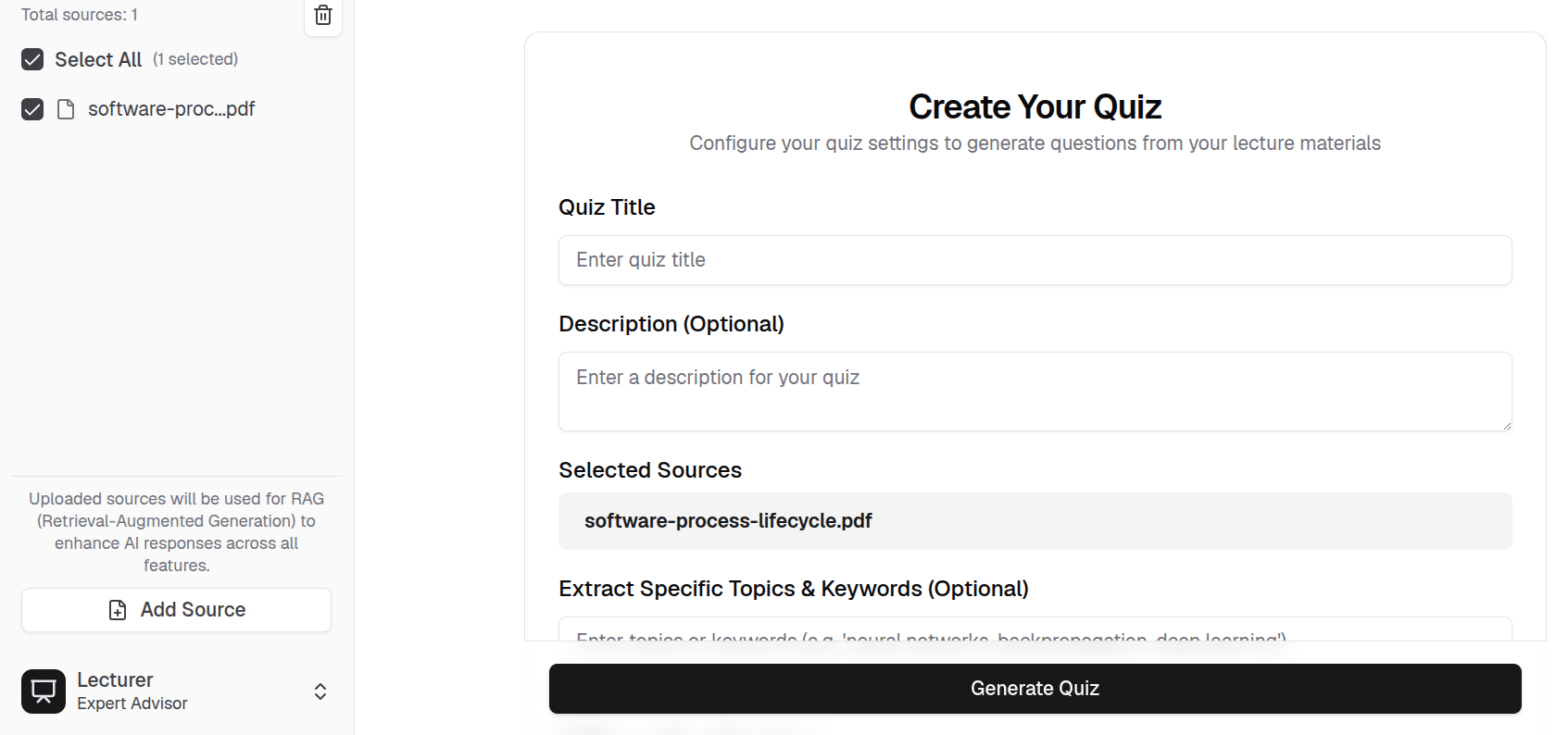
Enter the quiz title, configure the quiz type using the available options, then click Generate Quiz.
-
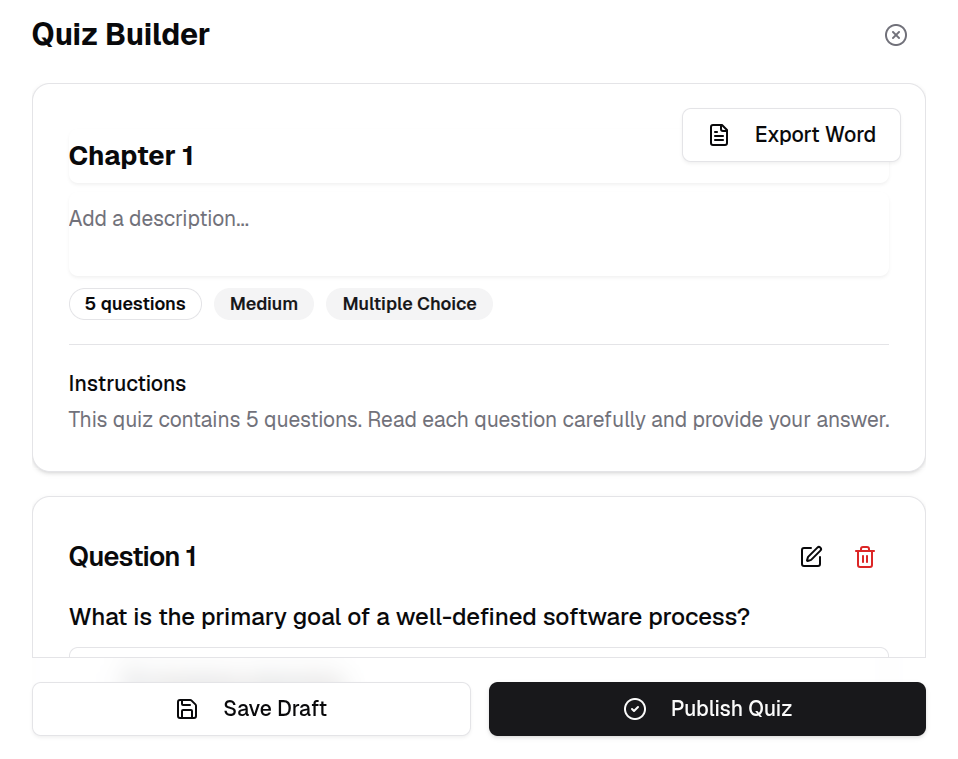
Review the generated quiz, then click Save Draft or Publish Quiz.
-
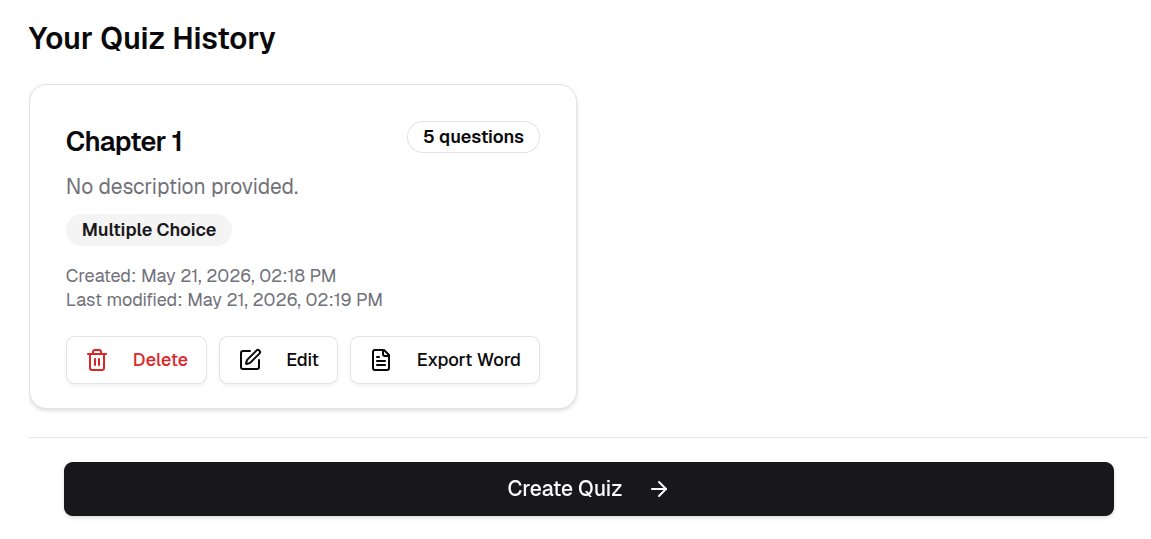
The generated quiz appears in Your Quiz History.
FAQ Generator
-
Check the checkbox next to a source in the sources list to apply a document source.
-
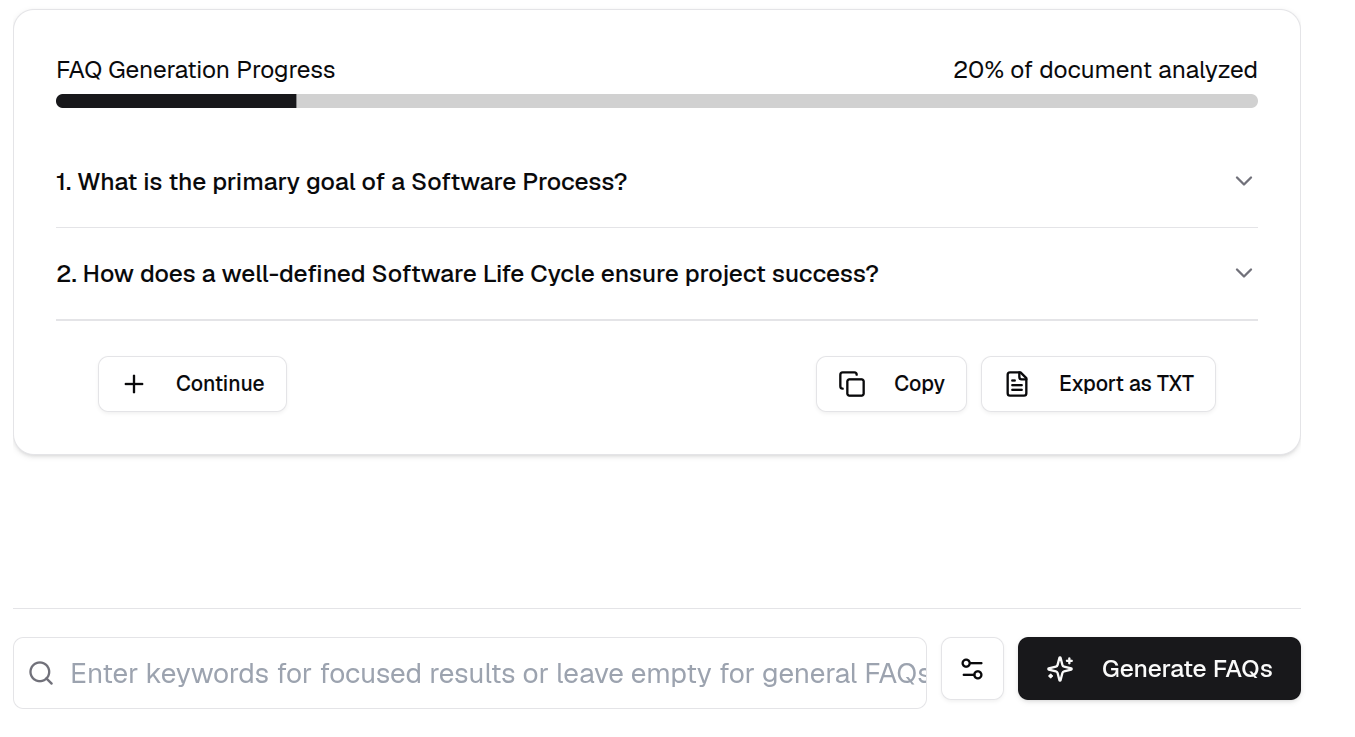
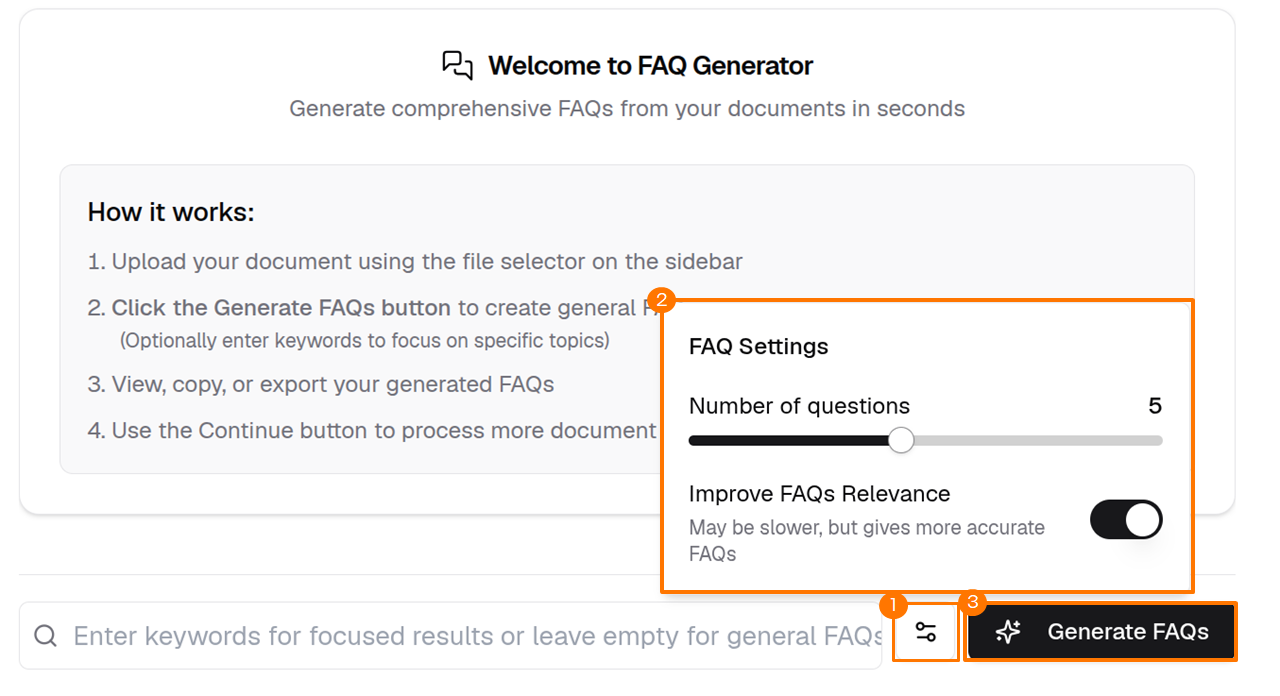
Configure the FAQ Settings, then click Generate FAQs.
Info
Optionally enter keywords to focus on specific topics.
-
Review the generated FAQs. Click Continue to generate more FAQs based on the source document.