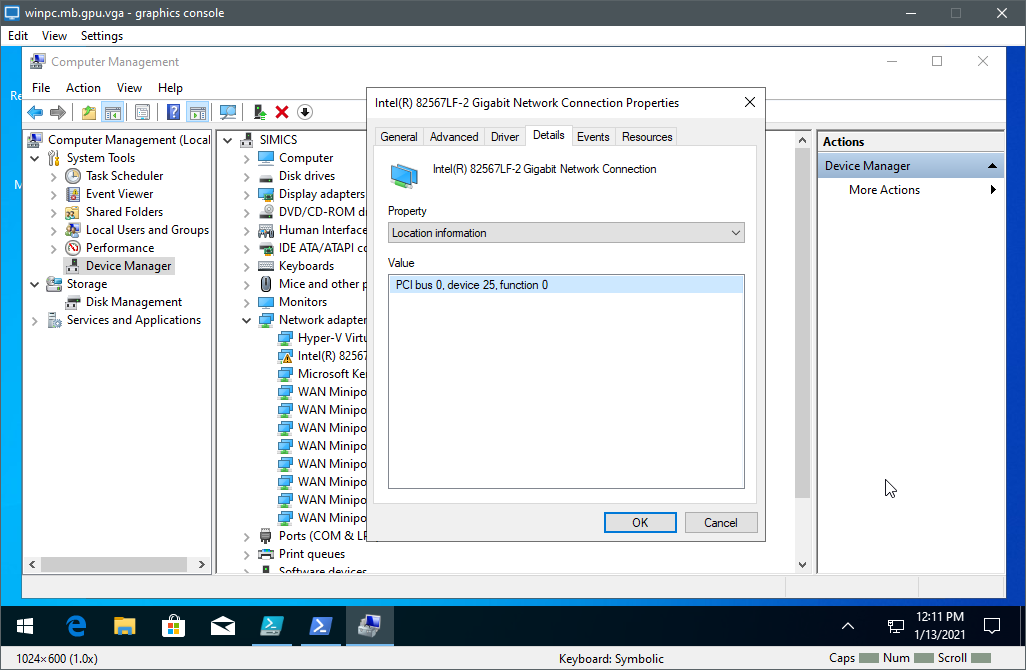
Figure 3. Checking PCIe address of network device.
If there are multiple network devices in the system, Windows requires that you specify the card to use for debug. This is done using the PCI Bus:Device:Function (BDF) address of the network card supported by the Windows kernel debugger. To find out the BDF of the network card, check the properties in the Windows Device Manager. The address is listed as 'Location' in the 'General' tab.
You can also use the Get-NetAdapterHardwareInfo Powershell command to get BDF:
> Get-NetAdapterHardwareInfo | fl

Name                        : Ethernet 2
InterfaceDescription        : Intel(R) I210 Gigabit Network Connection
DeviceType                  : PCI Express endpoint
SegmentNumber               : 0
BusNumber                   : 2
DeviceNumber                : 0
FunctionNumber              : 0
SlotNumber                  : 12
NumaNode                    : 0
PciCurrentSpeedAndMode      :
PciExpressCurrentLinkSpeed  : 2.5 GT/s
PciExpressCurrentLinkWidth  : 4
PciExpressMaxLinkSpeed      : 2.5 GT/s
PciExpressMaxLinkWidth      : 4
PciExpressVersion           : 1.1
LineBasedInterruptSupported : True
MsiInterruptSupported       : True
MsiXInterruptSupported      : False