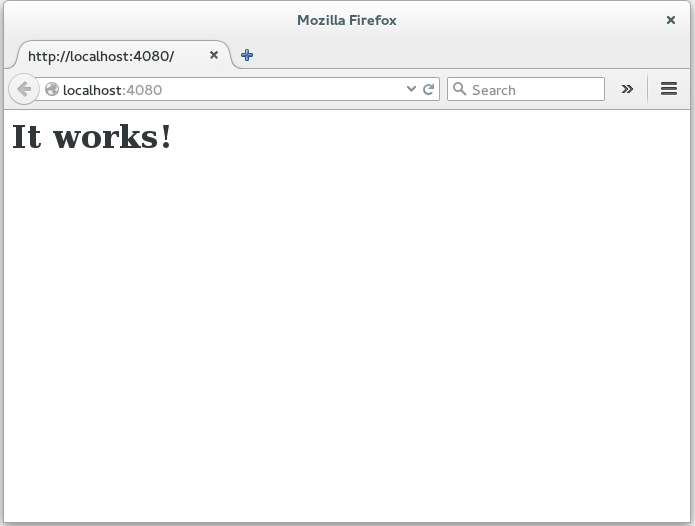
Figure 1. A very simple page
A network simulation can also be connected to a real network. By doing this, simulated computers and real computers will be able to communicate with each other.
firststeps.simics. By default, the firststeps.simics
target script creates not only the target machine but also an Ethernet switch
(the ethernet_switch0 object of the ethernet_switch
class) and a kind of a router (the service_node_cmp0 object of
the service_node_comp).
Once the target machine is booted, we can see that the simulated machine got IP address
assigned. We use here newer ip command but the legacy ifconfig
command is also available on the target:
~# ip a
1: lo: <LOOPBACK,UP,LOWER_UP> mtu 65536 qdisc noqueue state UNKNOWN group default qlen 1000
    link/loopback 00:00:00:00:00:00 brd 00:00:00:00:00:00
    inet 127.0.0.1/8 scope host lo
       valid_lft forever preferred_lft forever
    inet6 ::1/128 scope host
       valid_lft forever preferred_lft forever
2: enp0s25: <BROADCAST,MULTICAST,UP,LOWER_UP> mtu 1500 qdisc fq state UP group default qlen 1000
    link/ether 00:17:a0:00:00:00 brd ff:ff:ff:ff:ff:ff
    inet 10.10.0.100/24 brd 10.10.0.255 scope global dynamic enp0s25
       valid_lft 2998sec preferred_lft 2998sec
    inet6 11:2233:4455:6677:217:a0ff:fe00:0/64 scope global mngtmpaddr noprefixroute
       valid_lft forever preferred_lft forever
    inet6 fe80::217:a0ff:fe00:0/64 scope link
       valid_lft forever preferred_lft forever
~#
The IP address for the simulated machine was provided though DHCP service by the service_node_cmp0 object. The service_node_cmp0 object allows also to reach the outside world from the simulated machine:
~# curl -o index.html www.google.com
  % Total    % Received % Xferd  Average Speed   Time    Time     Time  Current
                                 Dload  Upload   Total   Spent    Left  Speed
100 12419    0 12419    0     0   1566      0 --:--:--  0:00:07 --:--:--  3022
~#
firststeps.simics target script so
the command will just instruct the service_node_cmp0 object to
forward ports 4021, 4022, 4023 and 4080 on the simulation host
to the simulated machine's telnet, SSH, FTP and HTTP ports, respectively.
simics> connect-real-network
NAPT already enabled.
Host TCP port 4021 -> 10.10.0.100:21
Host TCP port 4022 -> 10.10.0.100:22
Host TCP port 4023 -> 10.10.0.100:23
Host TCP port 4080 -> 10.10.0.100:80
firststeps.simics. You can also specify this address as
parameter to the command
host~$ ssh -p 4022 -l root localhost
The authenticity of host '[localhost]:4022 ([127.0.0.1]:4022)' can't be established.
ECDSA key fingerprint is SHA256:KcA9xIWuTUKDaTduNWCtxFHGnbRNiOxeFfNaci45MqI.
Are you sure you want to continue connecting (yes/no)? yes
Warning: Permanently added '[localhost]:4022' (ECDSA) to the list of known hosts.
~# exit
logout
Connection to localhost closed.
~/.ssh/known_hosts to login with ssh again.
Chapter 4 is the reference for everything related to real network connections.