Introduction
Here are the common recommendations about your system configuration that are beneficial for getting maximum performance from the workloads.
Contents
Energy Performance Bias (EPB) and Energy Performance Preference (EPP)
Energy Performance Bias (EPB) is a CPU power and performance control available on many Intel processors; lower values generally favor performance. On Windows, a closely related knob is exposed as Energy Performance Preference (EPP) via powercfg.
On Windows
Run the following command in cmd to set EPP to 0 (best performance):
powercfg -setacvalueindex scheme_current sub_processor PERFEPP 0
The changes to Energy Performance Preference apply system-wide and are permanent. The changes will persist even after the system restart until the next EPP update.
On Linux
To check the current value of EPB and EPP, run:
sudo cpupower info
To set EPB to Performance mode:
sudo cpupower set -b 0
Or use PerfSpect tool which provides a consolidated way to set EPB, EPP, and the scaling governor in one shot for Intel® Xeon™ processors:
perfspect config --epp 0 --epb 0 --gov 0
The changes to Energy Performance Bias or Energy Performance Preference on Linux apply system-wide and remain until the next system reboot or the next EPB/EPP update.
CPU Frequency Scaling
CPU Frequency Scaling is a technique that dynamically adjusts the processor clock speed based on workload demands. It lowers CPU core frequencies during idle periods to reduce power consumption. For better performance, it is recommended to set the clock speed to a higher frequency.
On Windows 11
Select Start > Settings > System > Power & battery.
Under Power mode, choose the Best performance option for Plugged in or On battery.
On Linux
Use the CPU scaling governor:
sudo cpupower frequency-set --governor performance
sudo x86_energy_perf_policy -c all performance
Note: If the maximum CPU frequency cannot be achieved, check the BIOS limitations.
Hyper-threading (HT)
Hyper-threading (HT) is Intel’s simultaneous multithreading implementation that can improve the parallelization of computations. When HT is enabled, for each processor core that is physically present, the operating system addresses two logical cores and shares the workload between them when possible. In this case, the logical cores located on a single physical core share the same resources.
Disabling Hyper-threading can help a workload run faster in situations where each physical core is already kept fully busy by a single thread, and adding a second logical thread on the same core only ends up competing for the same cache space and execution resources, rather than contributing any useful work. This is commonly seen in scenarios like real-time audio processing, certain games, or in some types of parallel applications where threads frequently share and depend on the same data.
On Windows
Hyper-threading can be detected by running Task Manager. Then navigate to Performance > CPU tab.
The number of physical and logical cores is listed in the bottom right corner of the tab. In case the number of logical cores is greater, HT is enabled:
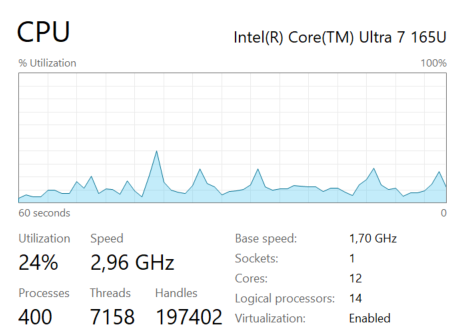
According to this picture, hyper-threading is enabled on two P-cores. Here is an illustration of the locations of the bits corresponding to those P-cores in the affinity mask of the system:
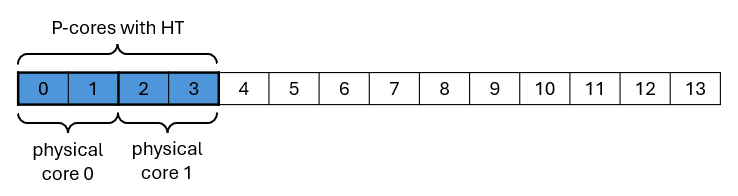
To disable hyper-threading for a process, the affinity mask in binary format should look like:

Which is equivalent to 2BFF in hexadecimal format for the example system above. Replace 2BFF with the mask computed for your CPU topology, then run the following command to disable HT on Windows:
start /affinity 2BFF cmd /c <workload.exe>
On Linux
Hyper-threading can be detected by running lscpu utility as follows: lscpu -e=cpu,core. Here is the example output for Intel® Core™ Ultra 7 165U:
CPU  CORE
0    0
1    0
2    1
3    1
4    2
5    3
6    4
7    5
8    6
9    7
10   8
11   9
12   10
13   11
From the output we can see that 4 logical processors (0, 1, 2, 3) are running on two physical cores (0, 1).
Replace 0,2,4-13 with the CPU list computed for your CPU topology, then use one of the following commands to run the process on physical cores only:
numactl -C 0,2,4-13 <workload>
or
taskset -c 0,2,4-13 <workload>
The required list of logical processors can be formed programmatically in Bash. In this case, the command sequence looks like:
cpus=$(lscpu -e=cpu,core | tail -n +2 | awk '!seen[$2]++ {printf sep $1; sep=","}')
numactl -C "$cpus" <workload>
Low Power Efficient Cores (LPE cores)
Low Power Efficient Cores (LPE cores) are a type of core available on modern Intel Core processors, designed to manage lightweight background processes independently. This allows the main compute tiles to be powered down, saving battery life on mobile devices.
Disabling the LPE cores can be beneficial when running parallel workloads that distribute work evenly across all available cores. Because the significant performance gap between LPE cores and other types of cores can cause the faster cores to sit idle waiting for the slower ones to finish their part of the work, making the slowest cores the bottleneck that holds back the entire computation.
On Windows
Check the CPU specification on the Intel products page. Here is an example for the Intel® Core™ Ultra 7 165U processor:
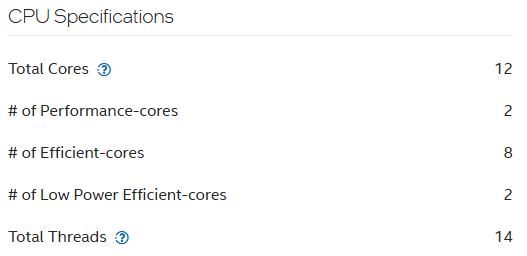
The location of the LPE cores in the system affinity mask in this case would be:

For the example system above, the recommended affinity mask that disables both hyper-threading and LPE cores is 2BFC:

Run the following command to disable HT and LPE cores on Windows:
start /affinity 2BFC cmd /c <workload>
On Linux
LPE cores can be detected by running the lscpu -e=cpu,core,maxmhz command. Here is the example output:
CPU  CORE  MAXMHZ
0    0     4900.0000
1    0     4900.0000
2    1     4900.0000
3    1     4900.0000
4    2     3800.0000
5    3     3800.0000
6    4     3800.0000
7    5     3800.0000
8    6     3800.0000
9    7     3800.0000
10   8     3800.0000
11   9     3800.0000
12   10    2100.0000
13   11    2100.0000
The logical processors with the lowest maximum frequency (12, 13) are running on LPE cores.
For the example system above, the recommended processor list that does not contain both hyper-threaded and LPE cores is 0,2,4-11.
Run the following command to disable HT and LPE cores on Linux:
numactl -C 0,2,4-11 <workload>
Or use the following Bash command sequence to disable HT and filter out the cores with the maximal frequency lower than 3000 MHz:
export MIN_MHZ=3000
cpus=$(lscpu -e=cpu,core,maxmhz | tail -n +2 | awk -v min="$MIN_MHZ" '$3 >= min && !seen[$2]++ {printf sep $1; sep=","}')
numactl -C "$cpus" <workload>