Quick start
Most of the extension functionality will work out of the box on any given EDK2 project. However it will have the full set of features enabled when the source code is compiled and the workspace is loaded.
Loading the workspace
When you open a folder that contains an EDK2 project, look for the Edk2Code icon in the activity bar on the left side of VS Code. Clicking it opens the Edk2Code sidebar, which contains the Workspace and Module Info views.
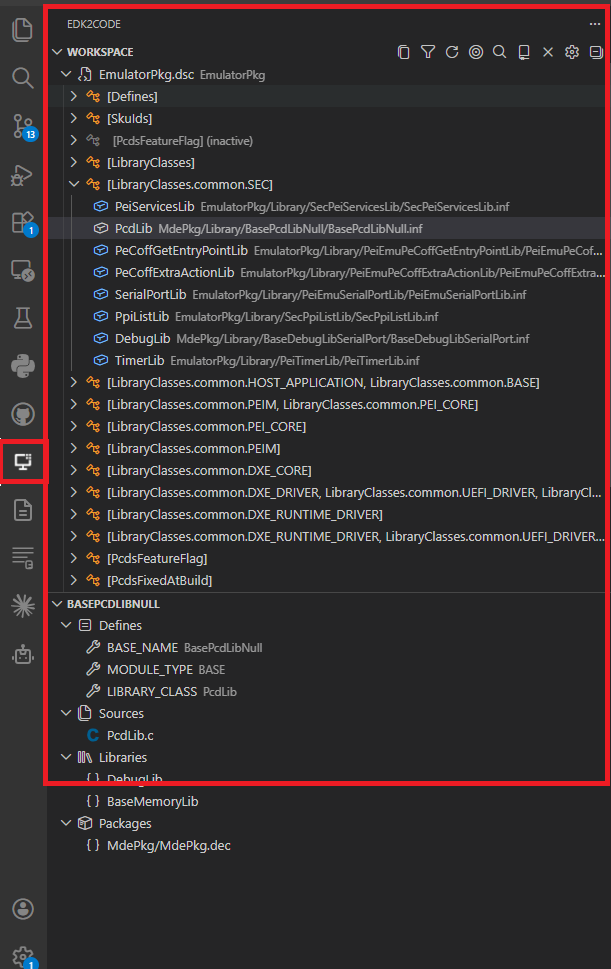
The Workspace view will guide you through loading your build configuration. If nothing is loaded yet, you will see the welcome screen:
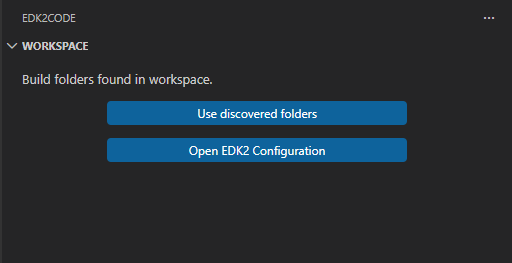
Option 1 — Auto-discover build folders (recommended)
If you have already compiled your EDK2 project, click Discover Build Folders. The extension will scan your workspace and detect all existing build output folders automatically.
Once discovery completes, click Use discovered folders to load the detected configurations. The Workspace view will populate with your DSC, INF, and source file hierarchy.
You can also trigger this at any time from the command palette:
> EDK2: Discover build folders
> EDK2: Use discovered build folders
Option 2 — Manual configuration
Click Open EDK2 Configuration (or run EDK2: Workspace configuration (UI)) to open the settings panel and manually specify:
- DSC paths — the main
.dscfiles for your platform - Build Defines — any
-Dflags used in your build command - Package paths — extra package roots passed to the build
> EDK2: Workspace configuration (UI)
Rebuild / Rescan
To force a full re-index after a new build, use:
> EDK2: Rebuild index database
To reload using the existing configuration without changing any settings:
> EDK2: Rescan index database
Enable compile information
You can use the compile information build feature from EDK2 to provide more build information to the extension. This is optional but recommended
To enable the compile information you need to enable the build report flag in the EDK2 build command and set -Y COMPILE_INFO. You can check more information about EDK build process here
For example, if you want to build EmulatorPkg from EDK2 source, your build command will look like this:
build -p EmulatorPkg\EmulatorPkg.dsc -t VS2019 -a IA32 -Y COMPILE_INFO -y BuildReport.log
This will generate compile information in your build folder.
-Y COMPILE_INFO -y BuildReport.log will add to your build folder the CompileInfo folder:
x:\Edk2\Build\EmulatorIA32\DEBUG_VS2019\CompileInfo
Files produced after parsing
After parsing is completed, some files will be created in .edkCode folder on your workspace.
.ignore
This is a list of all your the files in your source that were not used during compilation. The generation of this file can be disabled in the extension settings. This file is used by VSCODE to ignore unused files. You can toggle the use of .ignore file in search:
compile_commands.json
This is the compilation database generated during build process. You can setup your C/C++ VSCODE plugging to use this compilation database to get better C parsing.
To setup compile commands in your workspace, open C/C++: edit configurations (UI) in command palette. Under Advance Settings look for Compile commands property. Set the path for ${workspaceFolder}\.edkCode\compile_commands.json as shown in the following image:
The EDK2Code extension will detect if compile_commands.json exists and will prompt the user to update the configuration
cscope.files
This is the list of all your files used in compilation. This file is used by Cscope to help provide C definitions.